Blog › TECH
Chrome Passwords Not Syncing to iPhone? Fix It With One Toggle
You save a new password in Chrome on your PC, open Chrome on your iPhone, and it’s not there yet. You’re signed in to the same Google account and sync is on, but it still hasn’t shown up.
It usually arrives eventually, but that’s annoying when you need to log in right now. What actually worked for me was simple: turn the toggle off and back on.
How to fix Chrome passwords not syncing to iPhone
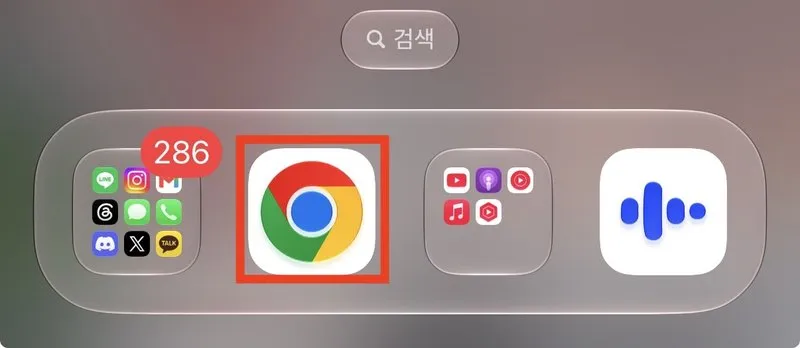
1. Open the Chrome app
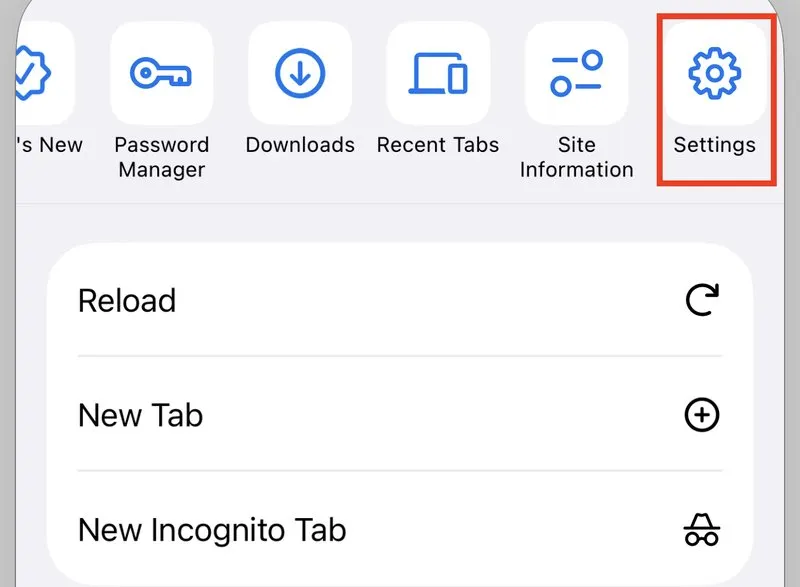
2. Tap the ··· button at the bottom right

3. Tap “Settings” in the menu
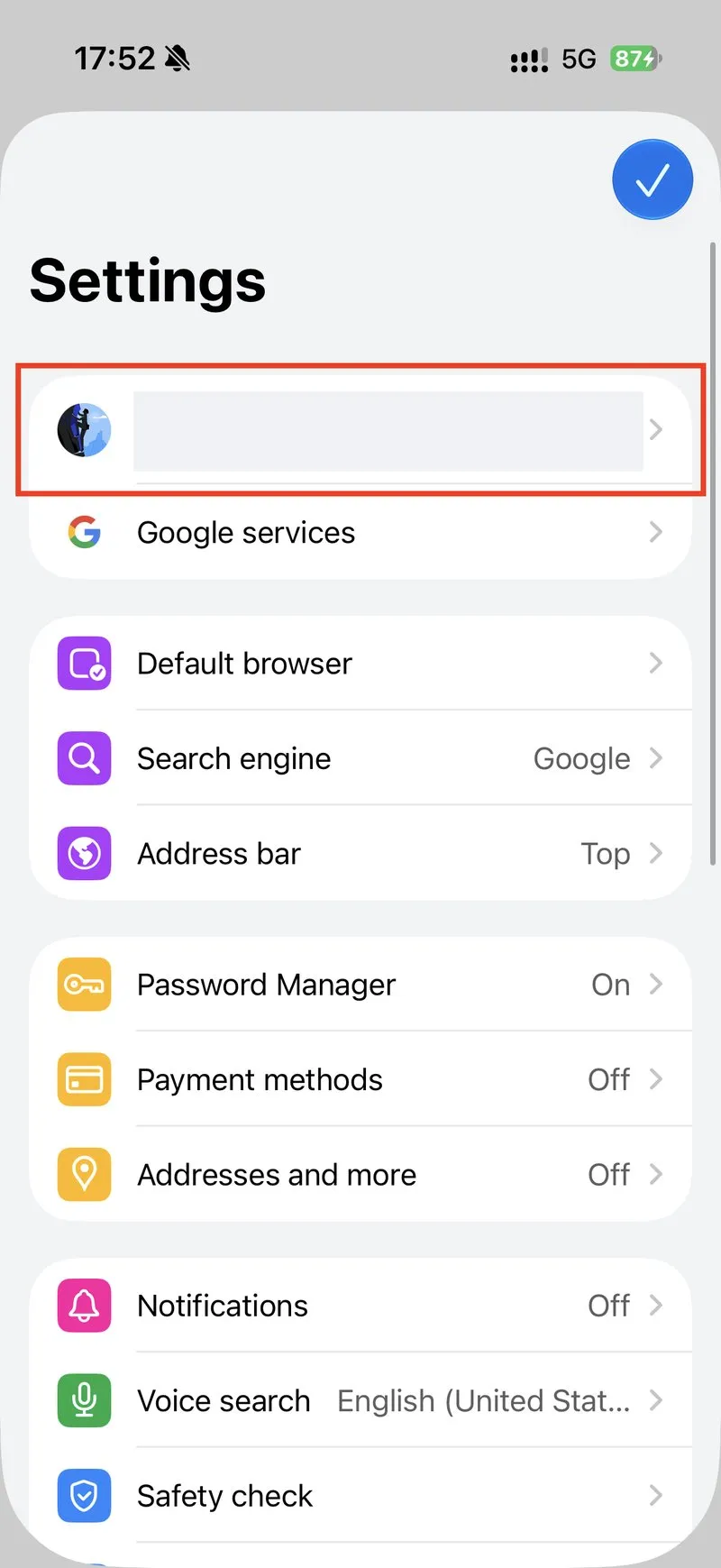
4. Tap your account at the top
5. Turn off “Passwords and passkeys”, then turn it right back on
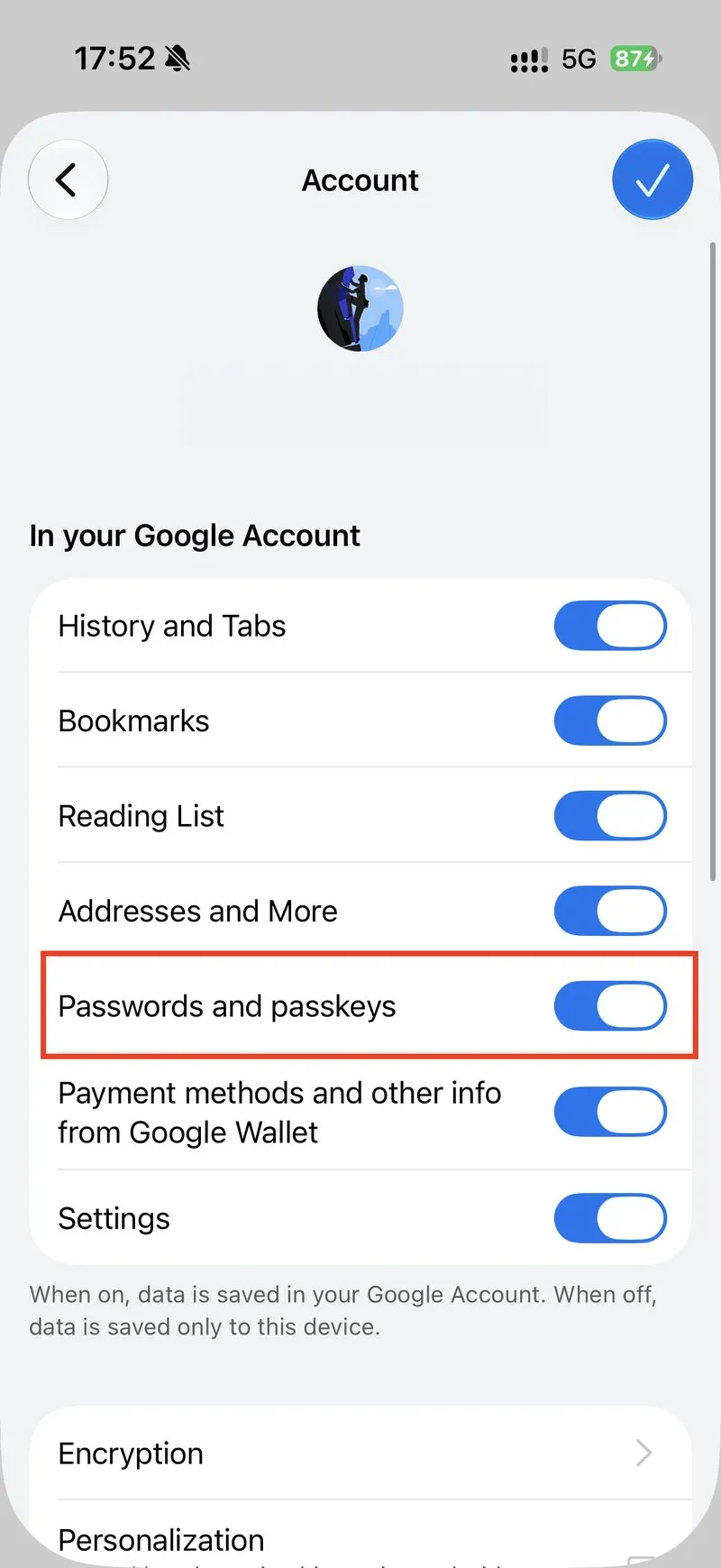
The moment you flip it back on, sync runs again and the password you saved on your PC shows up. That fixed it for me immediately.
Why does this happen?
Sync isn’t perfectly real-time, so there can be a delay. Toggling an item off and on seems to restart its sync from scratch, which pulls the data right away. (Google doesn’t publish the exact internals, so this is just my guess from experience.)
Worried about losing your passwords?
There’s a note right below the toggles:
When on, data is saved in your Google Account. When off, data is saved only to this device.
So turning it off just means “stop syncing with your Google Account and keep it on this device only.” Turn it back on right away, and in my case the saved passwords didn’t disappear while it was off.
If it still doesn’t work
- Make sure you’re signed in to the same Google account in Chrome on both your PC and iPhone
- If Chrome shows a verification prompt on your account screen, re-enter your account password
- Sign out of your account and sign back in
Comments